Shark robot vacuum error codes are almost always telling you something specific and fixable, whether your unit is beeping, flashing a colored light, or announcing an error on the app — not signaling that the unit is broken. Most error codes trace back to a handful of causes: a stuck brush roll, a blocked sensor, a full dustbin, a wheel that’s lost traction, or the robot getting stuck somewhere it can’t self-recover from. Below is what each of the common Shark robot vacuum error codes means and how to clear it, organized by what the robot is actually trying to tell you.
These error meanings and fixes are compiled from Shark’s official support documentation and cross-checked against the patterns reported most often across verified owner reviews and forum threads for these models — we don’t run an in-house test lab, and we say so plainly per our Editorial Policy.
Shark Robot Vacuum Error Codes: How They’re Communicated
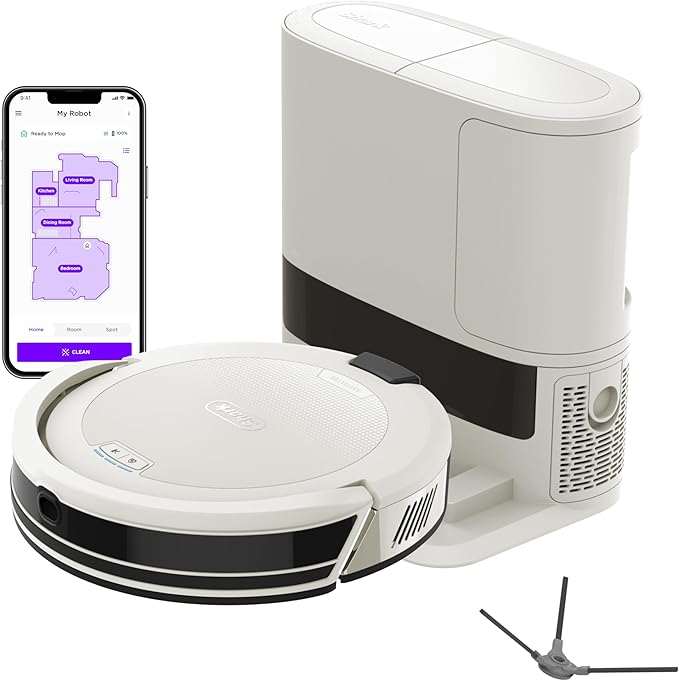
Depending on your model (ION, IQ, AI, or the app-connected AI Ultra/Detect Pro series), Shark robots report problems in up to three ways: a series of beeps from the unit itself, a colored or flashing light ring on top of the robot, and — on Wi-Fi connected models — a plain-language error message in the SharkClean app. If your robot isn’t app-connected, the beep count and light pattern are your only clues, so it helps to know what to listen and look for.
Error: Brush roll is stuck or tangled
This is the single most common error across every Shark robot model. The main brush roll (the long roller brush underneath) has picked up hair, string, or a rug tassel wound tightly enough that the motor can’t turn it, and the robot’s motor-current sensor shuts it down to avoid burning out.
Flip the robot over, remove the brush roll (most Shark models release it with a single latch or a quarter-turn twist), and cut away wound hair with a seam ripper or the cleaning tool that came in the box. Check both end caps, since hair often bunches at the bearings rather than the middle of the roller. Reseat the brush roll until it clicks and power the robot back on.
Error: Side brush is jammed
The side brush (the spinning arm that sweeps debris from edges and corners) can jam in the same way if a long hair or thread wraps around its base. This throws a similar but distinct error on app-connected models, since the side brush has its own smaller motor. Pop the side brush off (usually one screw) and clear hair from around the pivot pin before reattaching.
Error: Wheels are stuck or spinning without moving
If a drive wheel is caked with hair or debris, or the robot is trying to climb off a rug edge, a threshold, or a cord it can’t clear, it will report a wheel or drive error rather than keep grinding in place. Turn the robot over and rotate each wheel by hand — it should spin freely with slight resistance. Pick hair out of the wheel wells with tweezers, and check that the caster wheel at the front isn’t gummed up with pet hair, which is the more common culprit than people expect.
Error: Robot is stuck (bumper or cliff sensor)
Shark robots stop and report this error when the front bumper is pressed and held (meaning it’s wedged against furniture or a wall) or when a cliff sensor on the underside detects a drop-off it can’t safely cross, like a stair edge or a high threshold. Physically free the robot, wipe the cliff sensors (the small round windows on the underside near the front and sides) with a dry microfiber cloth, since dust buildup alone can cause false cliff readings, and restart the cleaning cycle.
Error: Dustbin is missing or full (a common Shark robot vacuum error code)
The dustbin has a physical sensor that confirms it’s seated correctly; if it’s removed, not fully clicked in, or completely full, the robot won’t start a cleaning cycle and will beep or flash to say so. Empty the bin, check the filter isn’t so packed with fine dust that it’s blocking airflow (a clogged filter can trigger this even with a half-empty bin), and make sure the bin snaps fully into place — it should click, not just rest in the slot.
Error: Robot can’t find its dock / docking failure
This shows up as the robot repeatedly bumping near the dock without connecting, or the app reporting a failed return. The most frequent cause is the dock’s charging contacts being dirty or dusty, which breaks the electrical connection even when the robot looks correctly docked. Wipe both the robot’s charging contacts (two metal strips on the front underside) and the dock’s contacts with a dry cloth. Also confirm the dock has at least a few feet of clear space on either side and isn’t on a thick rug, which can throw off the robot’s docking approach angle.
Error: Side wheel or main brush motor overloaded
On thicker carpets or high-pile rugs, some Shark models will throw an overload error if the brush roll or wheels are working harder than the motor is rated for over a sustained period. This is more likely on rugs with long fringe or shag carpet. If this happens repeatedly on a specific rug, set that zone as a no-go area in the app rather than letting the robot repeatedly trip the same protection.
Still Getting a Shark Robot Vacuum Error Codes Message After These Steps?
You can also check Shark’s official support site for your specific model’s error-code chart before troubleshooting further. If a specific error keeps recurring after you’ve cleared the obvious cause, do a full power cycle: hold the power button until the robot fully shuts down, wait 20–30 seconds, then restart it. If the error persists on an app-connected model, check the SharkClean app for a pending firmware update, since Shark has occasionally shipped sensor-calibration fixes through updates. A unit still throwing the same Shark robot vacuum error code with no physical obstruction, especially early in ownership, is more likely a hardware fault covered under warranty than something you can clear yourself.
Related reading
If your robot’s error turned out to be charging-related, see our guide on Shark robot vacuum won’t charge. If it’s starting cleaning cycles on its own with no error at all, that’s a separate issue covered in Shark robot vacuum starting on its own.
FAQs
Why does my Shark robot keep beeping even after I cleared the brush roll?
Reseat the brush roll fully until it clicks on both ends — a brush roll that’s cleared of hair but not seated correctly will still trigger the same error, since the sensor is checking for resistance, not just for hair.
How many beeps mean what on a Shark robot without Wi-Fi?
Beep patterns vary by exact model, and Shark doesn’t publish a single universal chart across its whole lineup — check the quick-start guide that came with your specific model number, or look up that model number in the SharkClean app’s help section, which lists the pattern for your unit.
Can dust on the sensors really cause an error with nothing physically wrong?
Yes — cliff sensors and dock-charging contacts are the two most common false-positive triggers. A quick wipe with a dry cloth resolves a surprising share of “stuck” and “can’t dock” errors with no other repair needed.
Should I reset the robot to factory settings if an error won’t clear?
Try a simple power cycle first. A full factory reset should be a last resort, since it clears your mapped floor plan and no-go zones, meaning you’ll need to remap your home from scratch.
If your Shark robot vacuum keeps running into trouble even after clearing an error code, it may be worth comparing other reliable options in our guide to the best robot vacuums.