A Shark robot vacuum that won’t charge almost always comes down to one of four things: dirty charging contacts, a dock that’s out of position, a depleted battery that needs a reset, or — less often — a battery that’s genuinely reached the end of its life. Work through these in order before assuming you need a replacement.
A note on sourcing: these steps are compiled from Shark’s official support documentation and the patterns reported most often across verified owner reviews and forum threads for these models — we don’t run an in-house test lab, and we say so plainly per our Editorial Policy. If nothing below resolves it, Shark’s support team can run diagnostics specific to your model.
Step 1: Clean the charging contacts
This fixes the issue more often than anything else on this list. Both the metal contacts on the bottom of the robot and the corresponding contacts on the dock collect a thin film of dust over time, which is enough to prevent a reliable electrical connection even though the robot looks like it’s docked correctly. Power off the robot, then wipe both sets of contacts with a dry microfiber cloth — a pencil eraser works well for stubborn oxidation. Don’t use water or cleaning spray directly on the contacts.
Step 2: Check the dock’s position and power
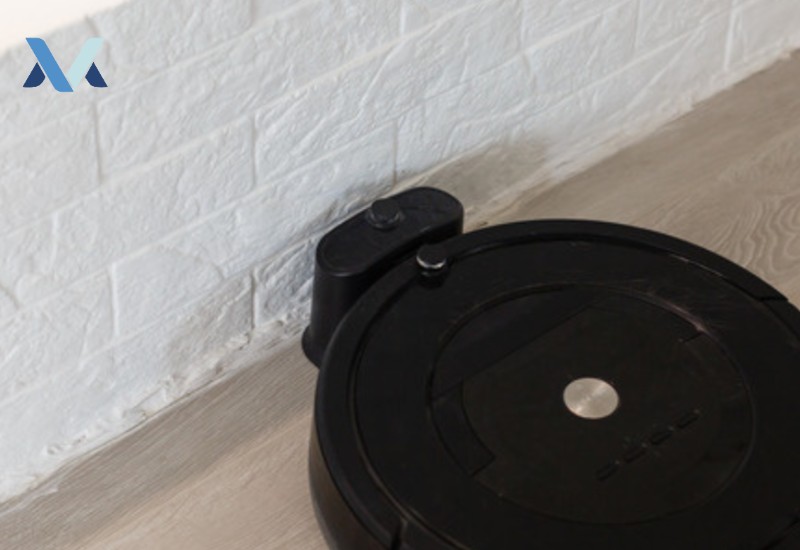
The dock needs to sit on a hard, flat floor with at least 1.5 feet of clear space on each side and roughly 3 feet in front. Confirm the outlet itself is working (test it with another device) and that the power cable is fully seated in the back of the dock — a cable that’s worked loose is an easy thing to miss since the dock’s indicator light can still appear on.
Step 3: Confirm the robot is actually docking flush
Watch a full docking attempt. If the robot stops short, docks at an angle, or bumps the dock without seating fully, the contacts never touch. This is usually a dock placement issue (see Step 2) or debris built up on the robot’s bumper preventing it from pushing all the way in.
Step 4: Power-cycle the robot
Most Shark robot models have a physical power switch on the underside, separate from the app. Turn it off, wait 20-30 seconds, then turn it back on and return it to the dock manually. This clears a stuck charging-state error without affecting your maps or schedules.
Step 5: Check battery age and health
If the robot charges but drains unusually fast, or won’t hold a charge at all after the steps above, the battery itself may be worn out. Lithium-ion batteries in robot vacuums typically last 2-3 years of regular use before capacity degrades noticeably. Shark sells replacement batteries for most models, and swapping one is usually straightforward — check your model’s manual for the specific battery access panel.
Still not charging?
If you’ve gone through all five steps and the robot still shows no charging activity (no light change, no sound, no indication it’s receiving power at all), contact Shark’s customer support directly — this points to either a fault in the dock’s power circuit or a robot-side charging port issue that needs a technician or warranty replacement rather than a DIY fix.
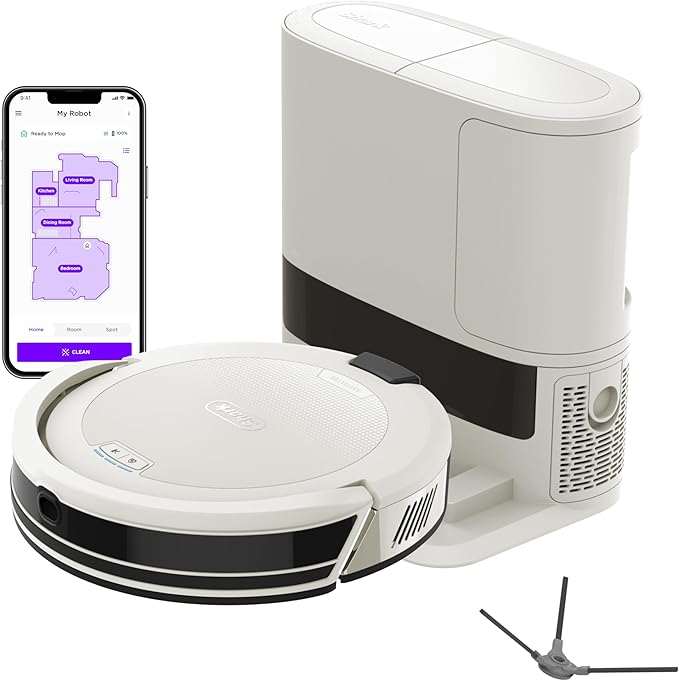
Related reading
If your Shark robot vacuum is exhibiting different symptoms, see our guide to a Shark robot vacuum starting on its own. For a broader look at upright and robot options if you’re considering a replacement, see our robot vacuum buying guide.
FAQs
Why is my Shark robot vacuum not charging but the light is on?
A light being on doesn’t confirm current is actually flowing to the battery — it usually just means the dock has power. Check the contacts first (Step 1), since a dirty or misaligned contact is the most common cause of this exact symptom.
How long should a Shark robot vacuum battery last per charge?
Most current Shark robot models run 60-120 minutes per full charge depending on the model and floor type, dropping as the battery ages. If your runtime has dropped sharply and recently, suspect battery wear rather than a charging fault.
Can I replace the battery myself?
On most models, yes — Shark sells official replacement batteries and the access panel is usually a few screws on the underside. Check your specific model’s manual before ordering, since battery types differ across the Shark robot lineup.